Connect your domain; the panel provides the DNS records.
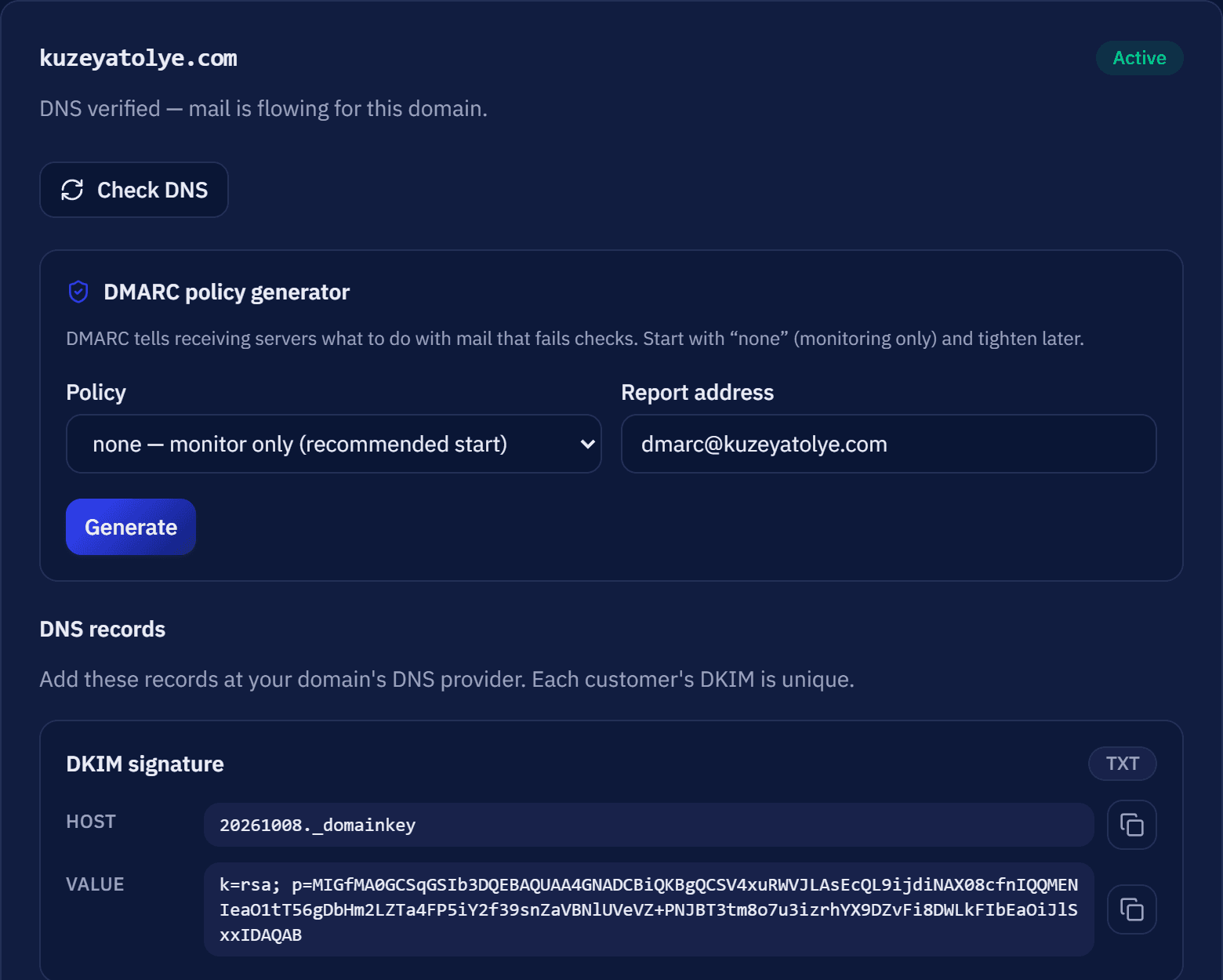
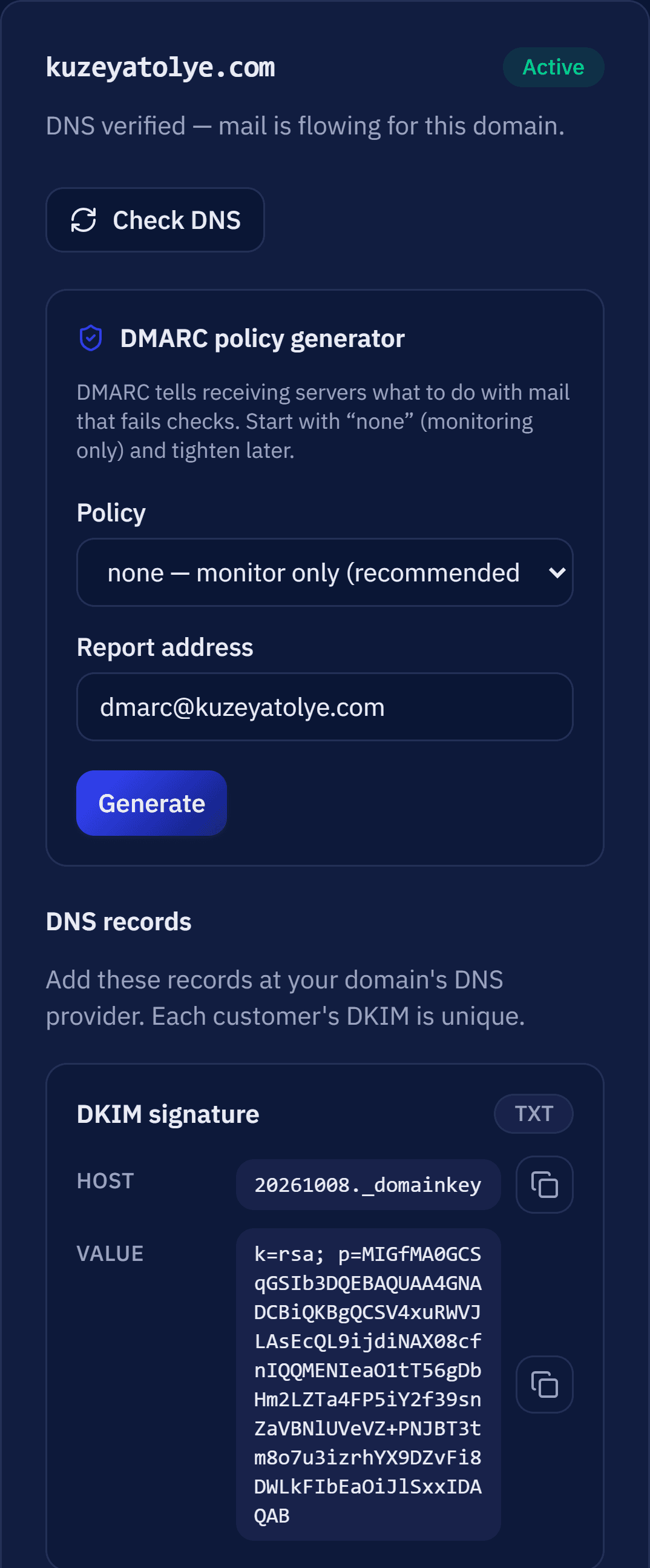
When you add your domain, the DKIM, Return-Path and DMARC values are generated for you. You enter them at your domain provider and verify them from the panel in one step.
Give your staff addresses like info@yourcompany.com. Connect your domain, create mailboxes and migrate your existing mail.
Every message sent to your domain reaches MailDots servers first, is scanned for spam and viruses, and is then delivered to the right mailbox.
Sender
customer, supplier
MailDots
mx.maildots.io
Scanning
spam and virus filter
0scanned
info@yourcompany.com
0delivered
sales@yourcompany.com
0delivered
billing@yourcompany.com
0delivered
Junk
suspicious mail
0filtered
This animation is illustrative; the numbers are not real traffic.
The usual issues with the email that comes bundled with a hosting plan, and how MailDots addresses them.
With hosting email
With MailDots
The images below are actual screens from the panel.
When you add your domain, the DKIM, Return-Path and DMARC values are generated for you. You enter them at your domain provider and verify them from the panel in one step.
Use it with Outlook, Apple Mail, Thunderbird, iPhone and Android, or sign in to webmail from the browser.
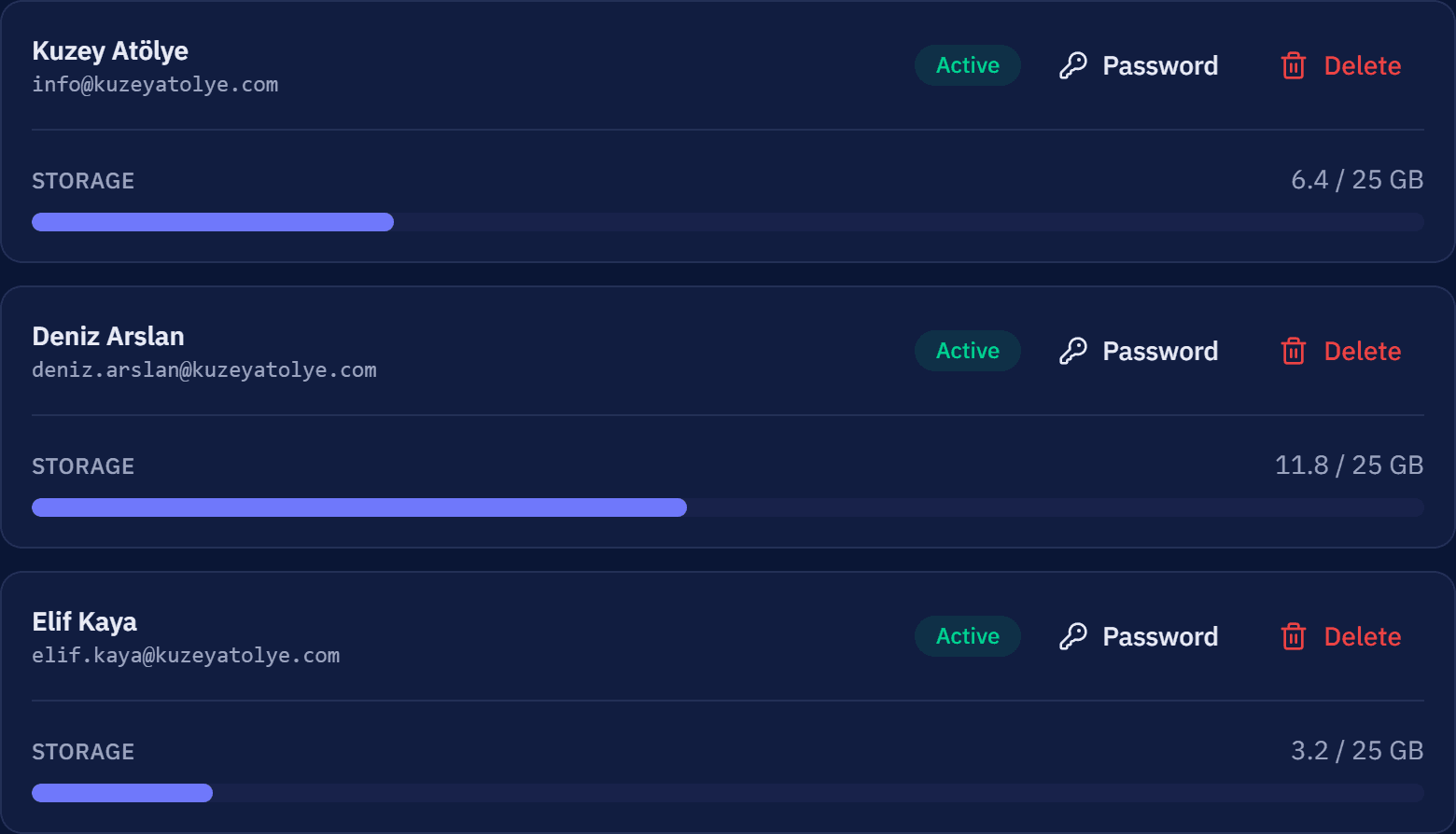
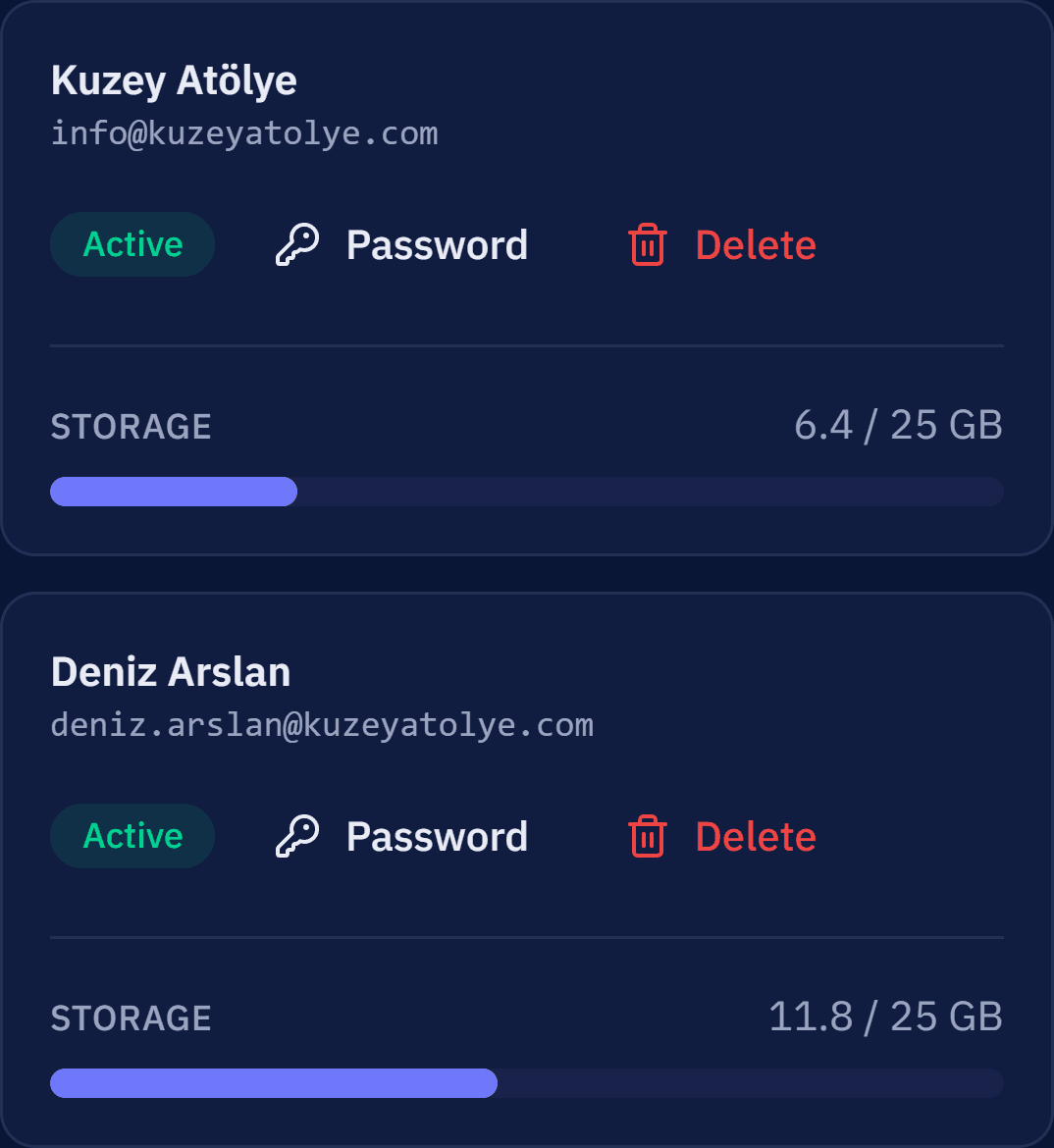
When creating a mailbox you set the display name, storage and password. When staff change, you reset the password or close the mailbox on the same screen.
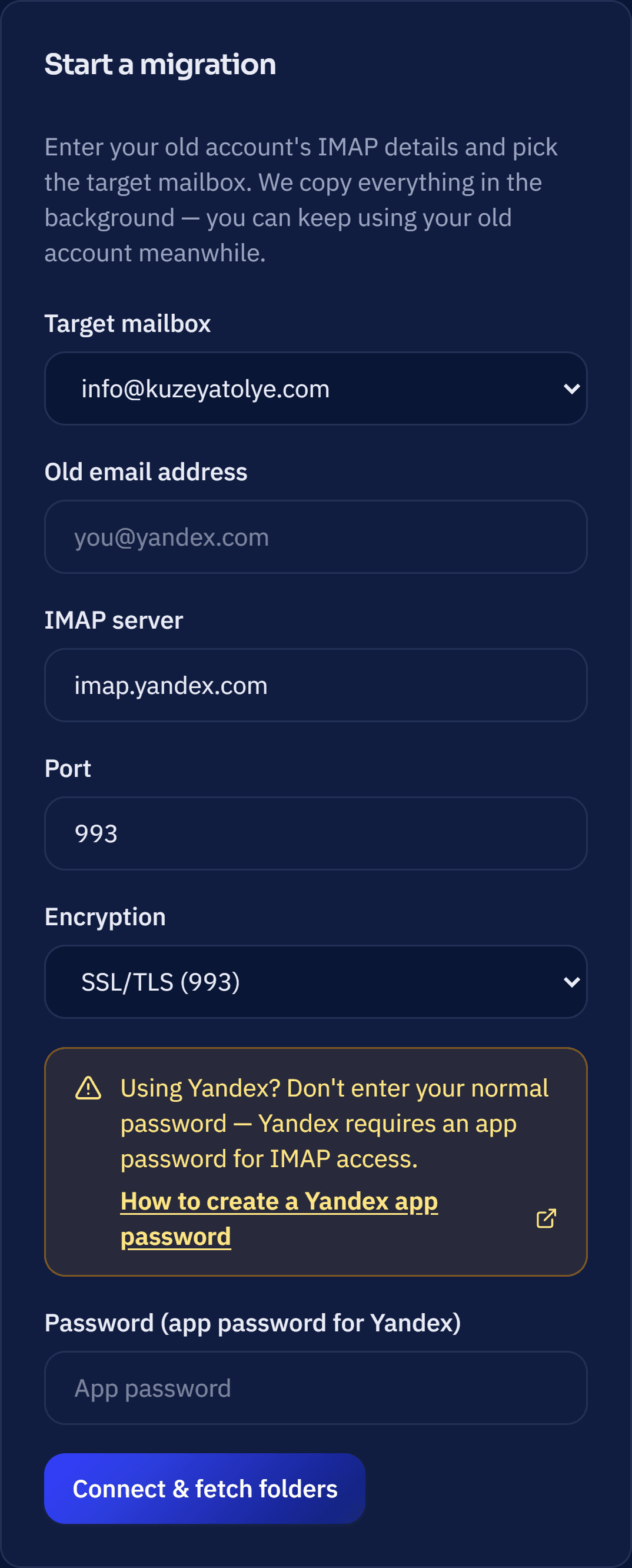
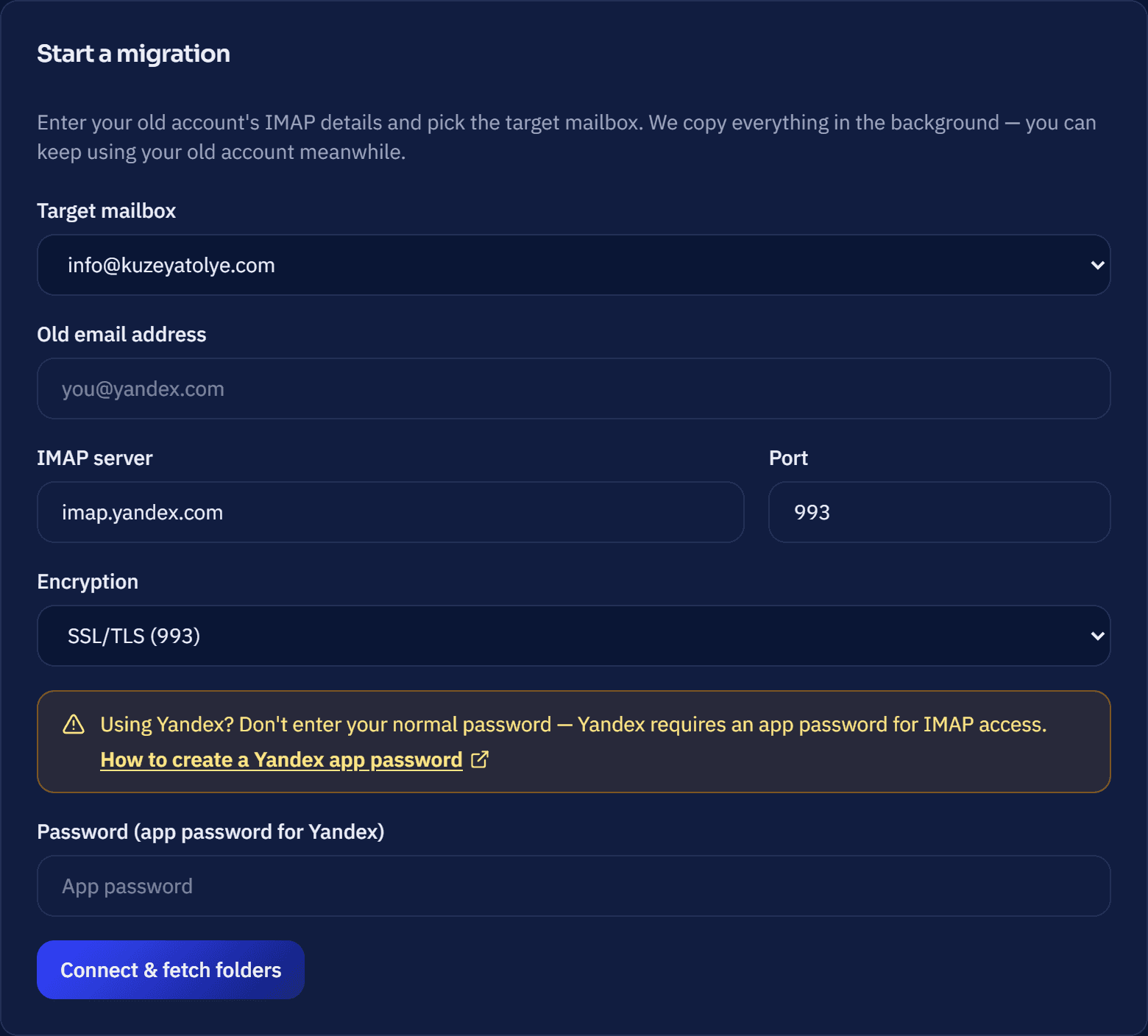
Enter the IMAP details of your old account and choose the target mailbox. Mail and folders are copied in the background. You can keep using your old account during migration; mail in the source mailbox is not deleted.
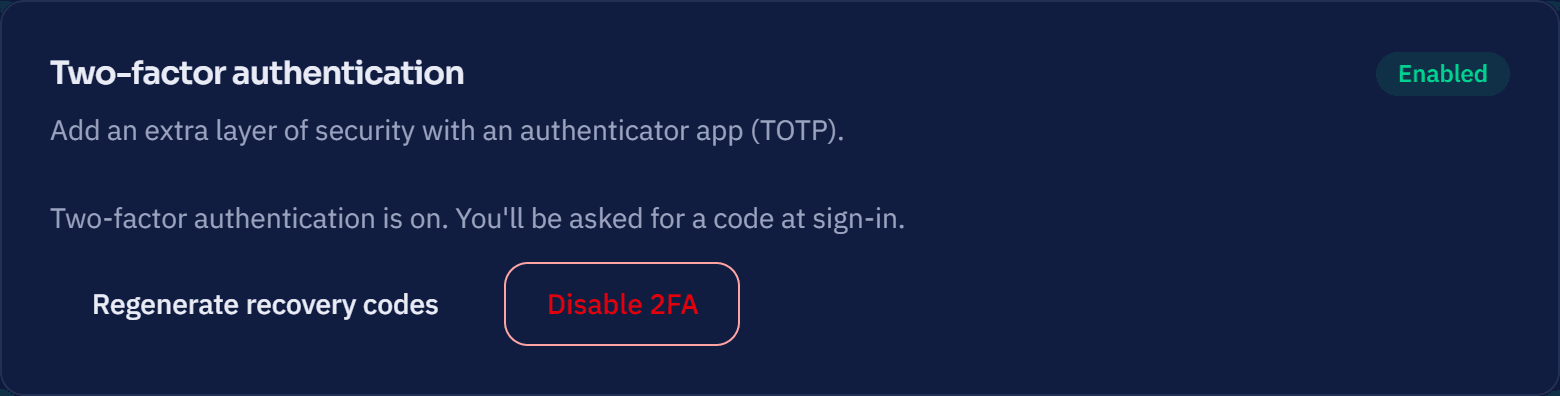
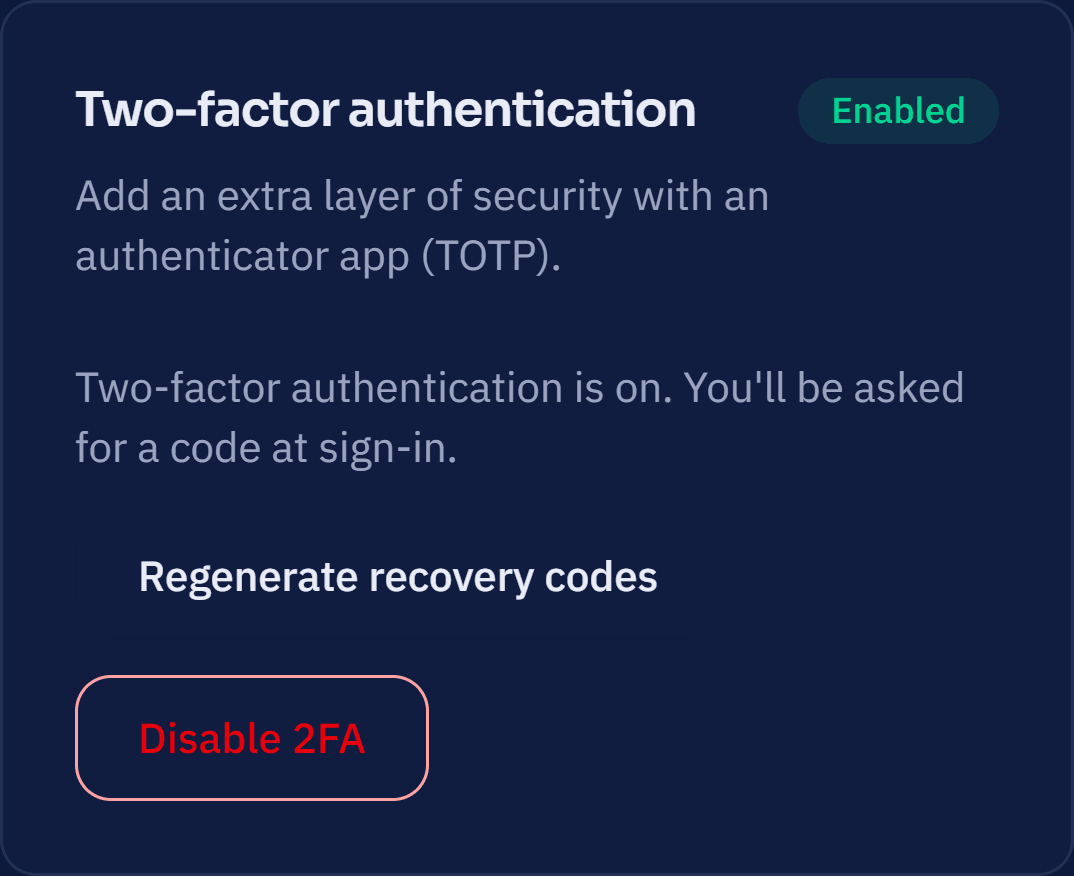
Your mail is encrypted in transit. You can protect your panel account with two-step verification; SPF, DKIM and DMARC records make it harder to send forged mail in your domain's name.
Choose the plan that fits your business; you can upgrade at any time.
For small teams and those just getting started.
$5/mo
SubscribeThe most balanced choice for growing businesses.
$6/mo
SubscribeFor high-volume, mission-critical infrastructure.
$7/mo
SubscribeIf your question is not answered here, contact us.
Yes. You can transfer your mail and folders from your previous provider with the migration tool in the panel.
You can register a domain with any registrar. You then add it in the panel and enter the DNS records provided to complete the connection.
Yes. There is no commitment; a monthly subscription can be cancelled at any time.
As many as your subscription includes. You can add mailboxes from the panel as your needs grow.
Yes. With IMAP and SMTP support it works in Outlook, Apple Mail and mobile email apps.
Opening an account and creating mailboxes takes a few minutes. DNS propagation time depends on your domain provider; you can follow the verification status in the panel.
Open your account, connect your domain and create your first mailbox.